Prepare your workspace
Agree on the purpose of tracking. Set up employees, manager access, departments, working days and the workday time zone. Communicate your capture and retention policy before installation.

STAFFLYTRACKER GUIDE
Follow the path from a company workspace and Windows tracker installation to daily activity reviews, attendance checks and reporting.
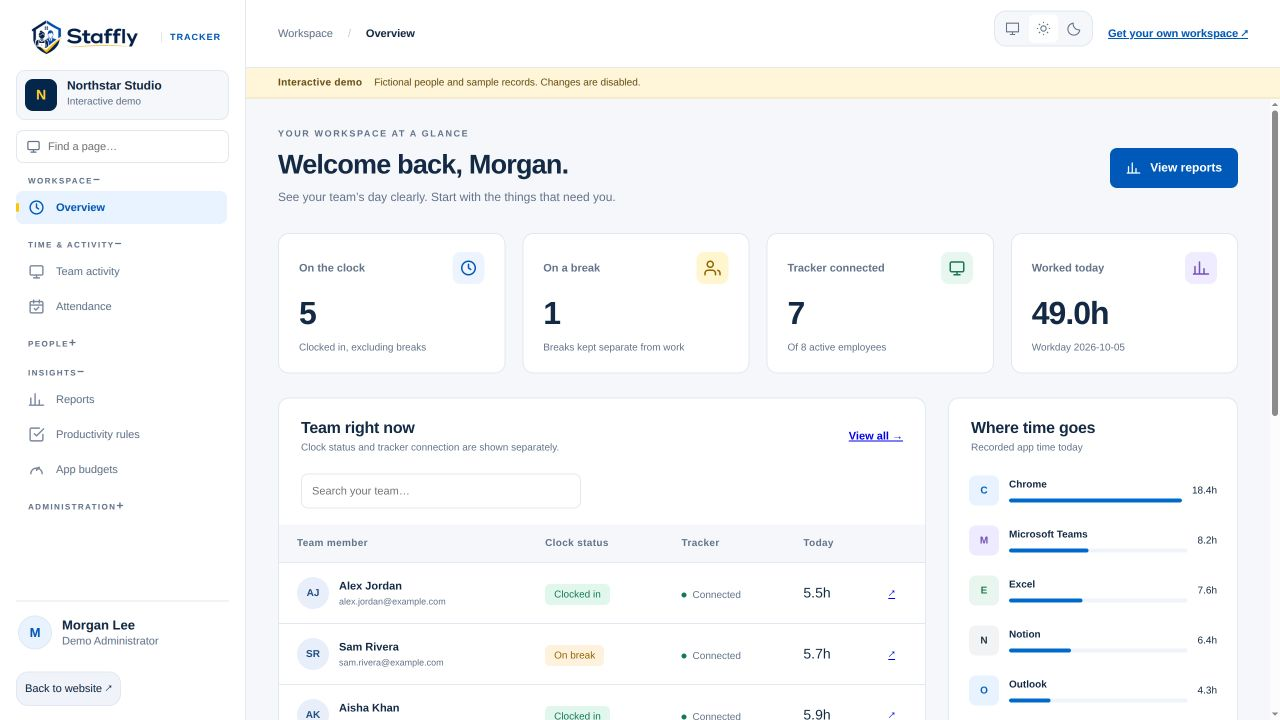
Agree on the purpose of tracking. Set up employees, manager access, departments, working days and the workday time zone. Communicate your capture and retention policy before installation.
Install the company’s tracker package on supported Windows 10 or 11 x64 computers. Employees sign in to the correct workspace. Verify a tracker report in the web dashboard; creating a user account does not install software.
Employees clock in, take breaks and clock out. The app records according to the workspace settings while tracking is active. Use the connection status to distinguish an open session from a reporting tracker.
Open an employee timeline when a day needs investigation. Compare session times, breaks, app activity and available screenshots. Missing coverage needs context, not an automatic performance judgment.
Review weekly off days, leave, holidays and reasoned corrections. Check night-shift boundaries and the display time zone before comparing records with your schedule.
Choose a useful date range and export the reviewed records. Confirm applicable pay rules and rates before using hours in payroll. Revisit classifications as roles and tools change.

No. Their device must have the tracker installed, signed in and connected. The web dashboard cannot start a program on a computer where no reporting component is running.
No. A correction adjusts a time record with a reason. It cannot reconstruct missing screenshots or activity.
LET’S MAKE WORK A LITTLE CLEARER
Show us how your team works. We’ll show you where StafflyTracker fits.