
FEATURE / REPORTS & INSIGHTS
From recorded time
to useful questions.
Useful reports help you understand what the records include, what they leave out and where a closer review is needed. StafflyTracker groups time and application reporting in a focused workspace.
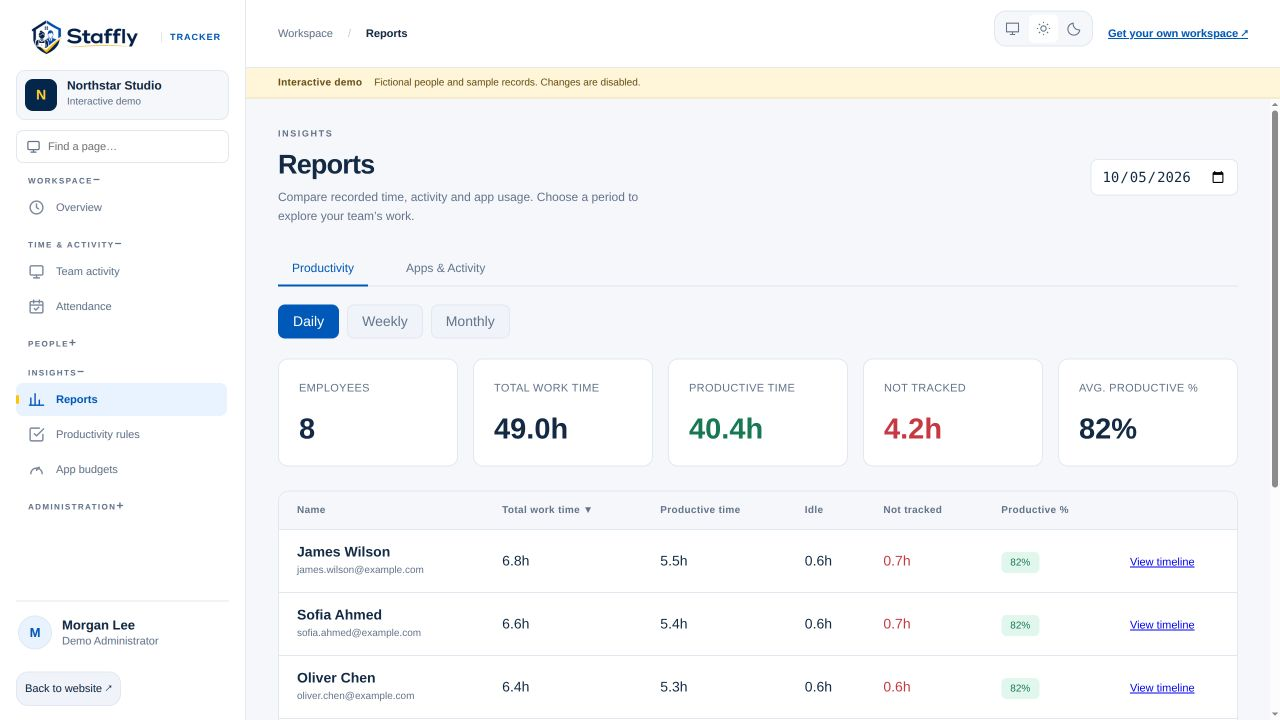
Choose the period that matches the question
A daily report helps investigate a particular shift. A weekly view can support a team check-in, while a monthly attendance view is useful for reviewing a longer record. Select the date and period before interpreting a total. Comparing two employees across different working schedules or incomplete periods can produce a misleading result. Start with consistent boundaries, then account for approved leave, breaks and known exceptions.
Read the time categories separately
Working time, recorded active time, idle time and time without tracker coverage have different meanings. A missing tracker interval is not automatically idle, and a period of low input can still contain useful work. Review each category instead of subtracting whatever is visible and calling the remainder productivity. Where a correction exists, check its reason. The goal is an understandable record, not a percentage that hides important differences.
Explore application and website context
Application reports help show where recorded computer time went. Process names and window titles provide context for categorisation, and department rules affect how those records are labelled. Use app reports to examine patterns such as time in operational systems or communication tools. They are not a complete history of a person’s thoughts or achievements. Treat long intervals and unfamiliar titles as prompts for a closer look.
Move between summary and individual records
A company summary is a starting point. Open a person’s timeline when you need to inspect sessions, breaks or activity intervals behind a total. The redesigned navigation keeps team activity, attendance and reports in predictable categories so you can move between them without losing the purpose of the review. This is particularly useful when a report raises a question that cannot be answered by its headline figures.
Take a reviewed record into your workflow
Attendance exports let administrators work with a selected month outside the application. Before using a workbook for another business process, confirm the time zone, date grouping, column definitions and any adjustments. Keep the source report period with the exported file so it can be checked later. A personal demo can include a sample export and an exception case, helping you assess whether the available records meet your reporting needs.
THE DETAILS MATTER
Your questions,
answered.
Which reporting periods are available?
The reports interface supports daily, weekly and monthly views for time and application reporting. Attendance provides a monthly view and an Excel export.
Do reports include time without tracker coverage?
The time reporting views distinguish unmonitored time so it is not silently treated as recorded activity. Review incomplete coverage before relying on a total.
Can we see the reports before buying?
Yes. The read-only interactive demo contains fictional records in the actual reporting interface. A personal demo can also cover your specific reporting workflow.
LET’S MAKE WORK A LITTLE CLEARER
Your next chapter
starts with a conversation.
Show us how your team works. We’ll show you where StafflyTracker fits.