
FEATURE / TIME TRACKING
Make every workday
easier to account for.
Employee time tracking starts with a dependable record of when work begins, pauses and ends. StafflyTracker keeps clock-ins, breaks and tracker connection status visible in one company workspace.
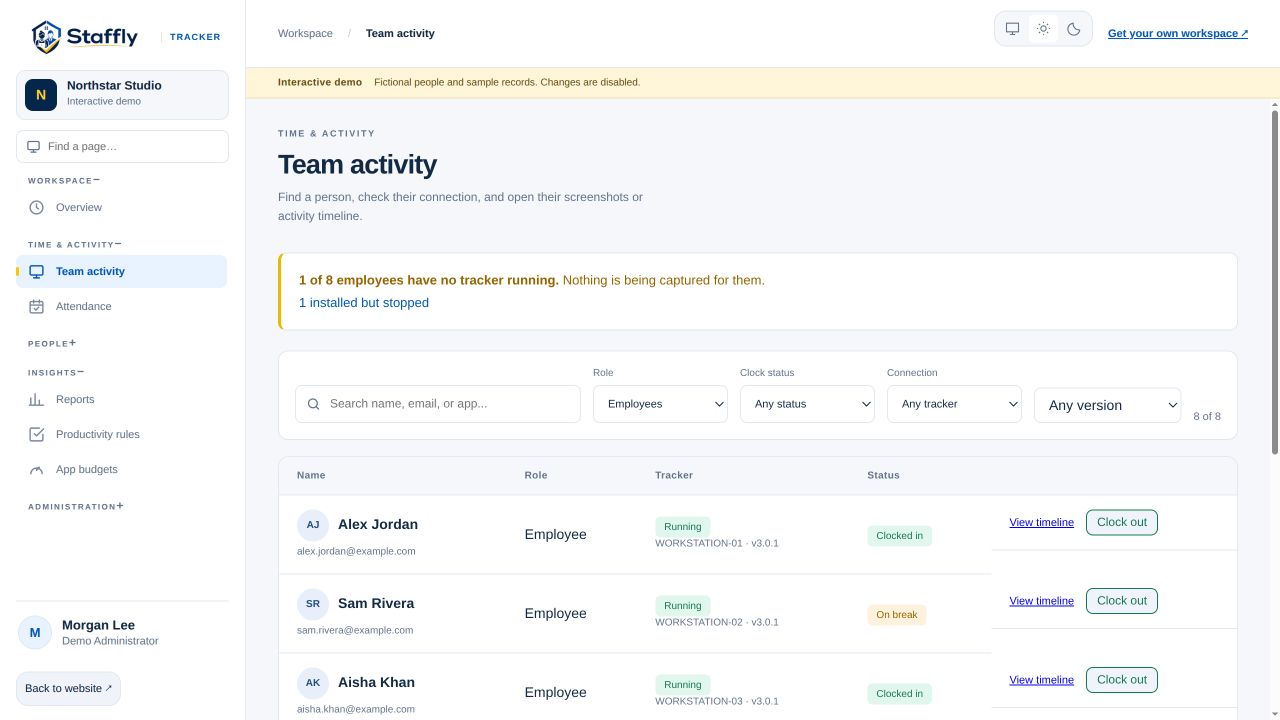
See the difference between a session and a connection
An employee can be clocked in while their tracker has stopped reporting. A laptop might be asleep, disconnected or experiencing an application problem. Treating an open session as proof of continuous tracking hides that distinction. StafflyTracker displays clock status and tracker connection separately, so an administrator can identify gaps before reviewing the day. Start in Overview for the current team picture, then open Team activity to filter the employee list.
Keep breaks in the record
Breaks are part of a workday, but they should not be confused with recorded working time. Employees can start and end a break through the tracker. Administrators can inspect break periods alongside sessions and activity, giving the day a clearer structure. When you compare a clock-in to a clock-out, remember that the elapsed span may include breaks. Use the named report fields instead of assuming that every minute between the endpoints is active computer work.
Start an administrative clock-in with context
When the tracker is connected and eligible, the admin interface can offer a clock-in action for an employee. This starts a session from that moment; it does not reconstruct earlier work. If someone has worked before a missing clock-in, review a time correction with a reason. The availability of the action depends on tracker health and account state. A web dashboard cannot collect workstation activity from an application that is not running.
Review exceptions instead of guessing
A lost connection, forgotten clock-in or unusual session deserves a review. Open the person’s timeline to compare sessions, breaks, activity and missing tracker coverage. Ask for context before changing a record. For working time that needs a correction, keep the explanation visible so another reviewer can understand what changed. This approach is especially useful for teams working late shifts or across locations, where a local calendar date alone can be misleading.
Configure the workday for your operation
Company workday settings and schedules affect how time is grouped into reports. Decide how overnight shifts should be treated before rollout and verify a sample shift in attendance. Make your time zone and report expectations clear to managers. StafflyTracker provides the recording and review tools, while your company remains responsible for deciding which time is payable and how attendance policies apply. Confirm your workflow during the demo rather than assuming that every organisation defines a workday in the same way.
THE DETAILS MATTER
Your questions,
answered.
Does clocked in mean actively using a computer?
No. Clock status, tracker connectivity, recorded activity and idle periods describe different things. Review them together instead of treating one status as a complete measure of work.
Can a manager recover time when a tracker was offline?
A reasoned time correction can adjust the attendance record. It cannot recreate screenshots or application activity that were never captured.
Can I use the tracker on a Mac?
The current desktop tracker supports 64-bit Windows 10 and Windows 11. Mac and Linux desktop agents are not currently offered.
LET’S MAKE WORK A LITTLE CLEARER
Your next chapter
starts with a conversation.
Show us how your team works. We’ll show you where StafflyTracker fits.