
FEATURE / SCREENSHOTS & ACTIVITY
See the context.
Find the moment.
A long list of screenshots is not useful if it takes too long to find the right moment. StafflyTracker connects the employee, workday and activity record in a focused timeline.
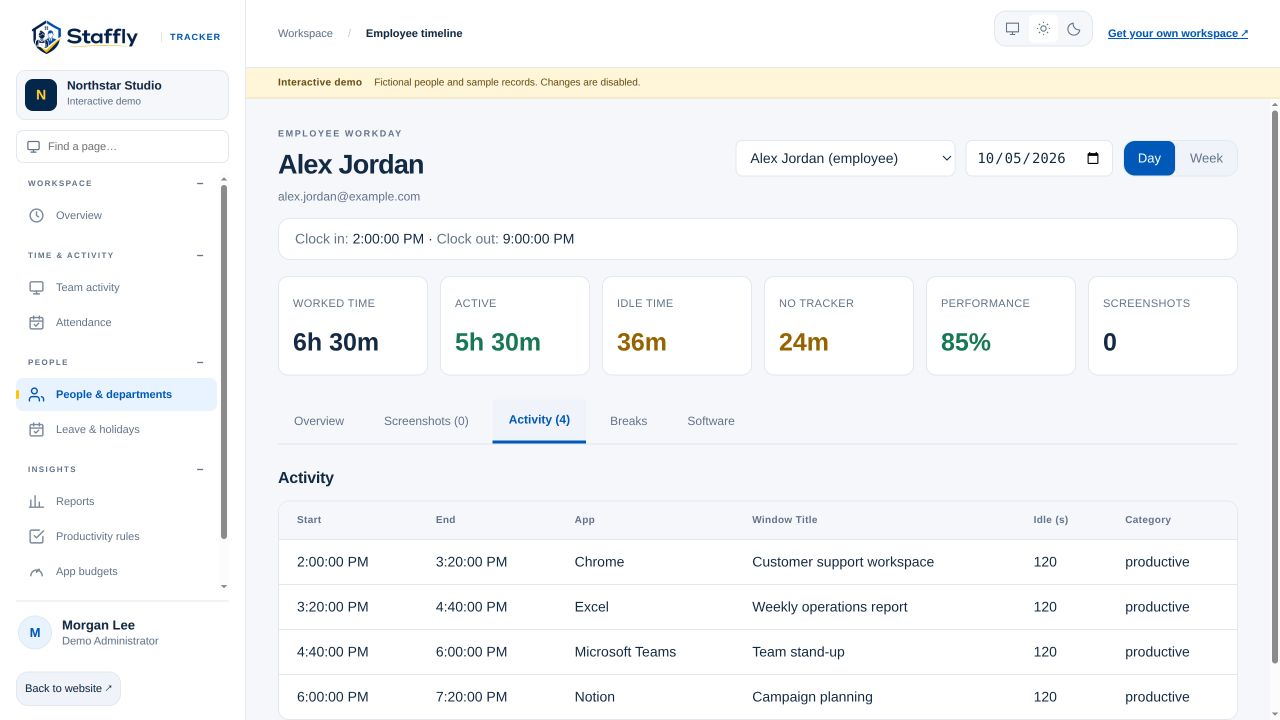
Move from a person to a specific day
Start with Team activity to find the employee, then open their timeline and choose the workday. Daily and weekly views serve different questions: the day view is for a particular session or event, while the week view helps you compare recorded time across days. Use the date selector deliberately, especially when the team works across time zones. The selected workday should match the period you are reviewing.
Use a tab for the question you are answering
The employee timeline separates Overview, Screenshots, Activity, Breaks and Software. You can review screenshots without scrolling through every application row, or inspect activity without losing your place among images. The overview keeps the day’s main time figures visible. This separation makes the page easier to use during a team conversation, when the administrator needs one piece of context rather than every available record.
Connect application activity to captures
Application activity can provide the process name, window title, interval and category associated with recorded computer use. The screenshot view supports filtering by the application context captured in those activity intervals. This helps narrow a review to a relevant tool or task. Window titles can be ambiguous and application names do not explain the full task, so use them as context rather than definitive evidence about what someone achieved.
Keep missing coverage visible
A timeline may contain periods with no tracker coverage. Network or application interruptions can also delay information. Do not assume that an empty space proves absence or that a screenshot proves continuous work between captures. Review the time record and tracker health alongside the image sequence. If the record is incomplete, make that uncertainty part of the conversation rather than filling the gap with an unsupported conclusion.
Set clear collection and access expectations
Before enabling screenshots, explain the capture policy, who will have access and how long images will be retained. Use company settings and role restrictions carefully. Screenshots can contain work information, so discuss which applications and workflows are appropriate for capture. StafflyTracker provides visibility tools; your organisation must establish its own appropriate policy and review process. A personal demo can help you inspect the controls before introducing them to employees.
THE DETAILS MATTER
Your questions,
answered.
Are the screenshots on this website real product screenshots?
Yes. Product images are captured from the actual StafflyTracker web application using fictional demo records. They are labelled accordingly and contain no customer or employee records.
Can I open a specific review window?
The employee timeline lets you choose a workday and browse captures. Alerts that have a recorded time window can link into the relevant timeline context.
Do screenshots prove productivity?
No. A capture shows a moment of screen content. It does not establish the quality of work or explain what happened outside that moment.
LET’S MAKE WORK A LITTLE CLEARER
Your next chapter
starts with a conversation.
Show us how your team works. We’ll show you where StafflyTracker fits.