
PRACTICAL GUIDE · FIELD NOTES
Tracker Off vs Clocked Out: Troubleshooting
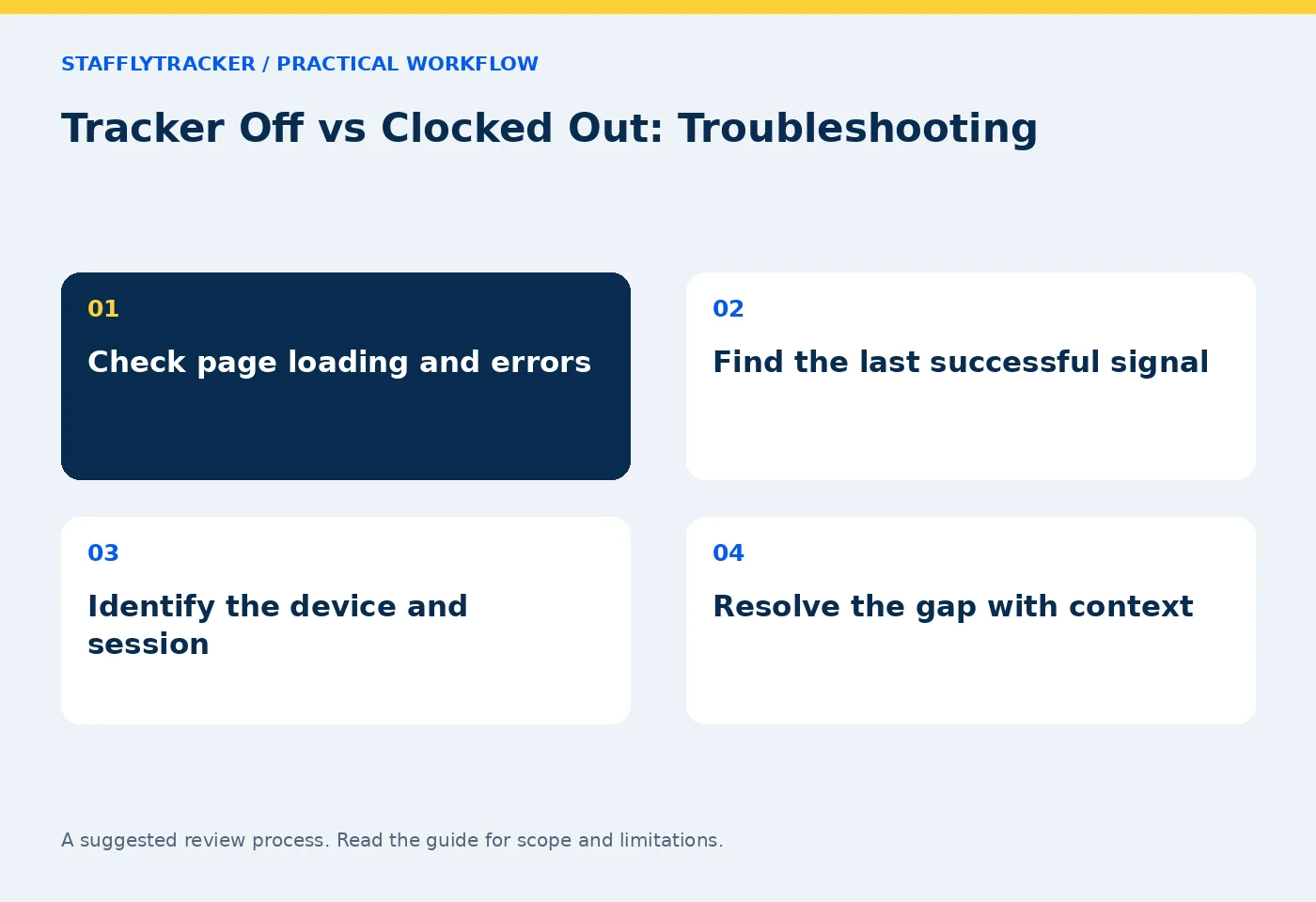
Troubleshoot tracker-off and clocked-out status separately. Check loading, last communication, device identity and attendance before drawing conclusions.
StafflyTracker editorial · Product by Syed Toheed Shah

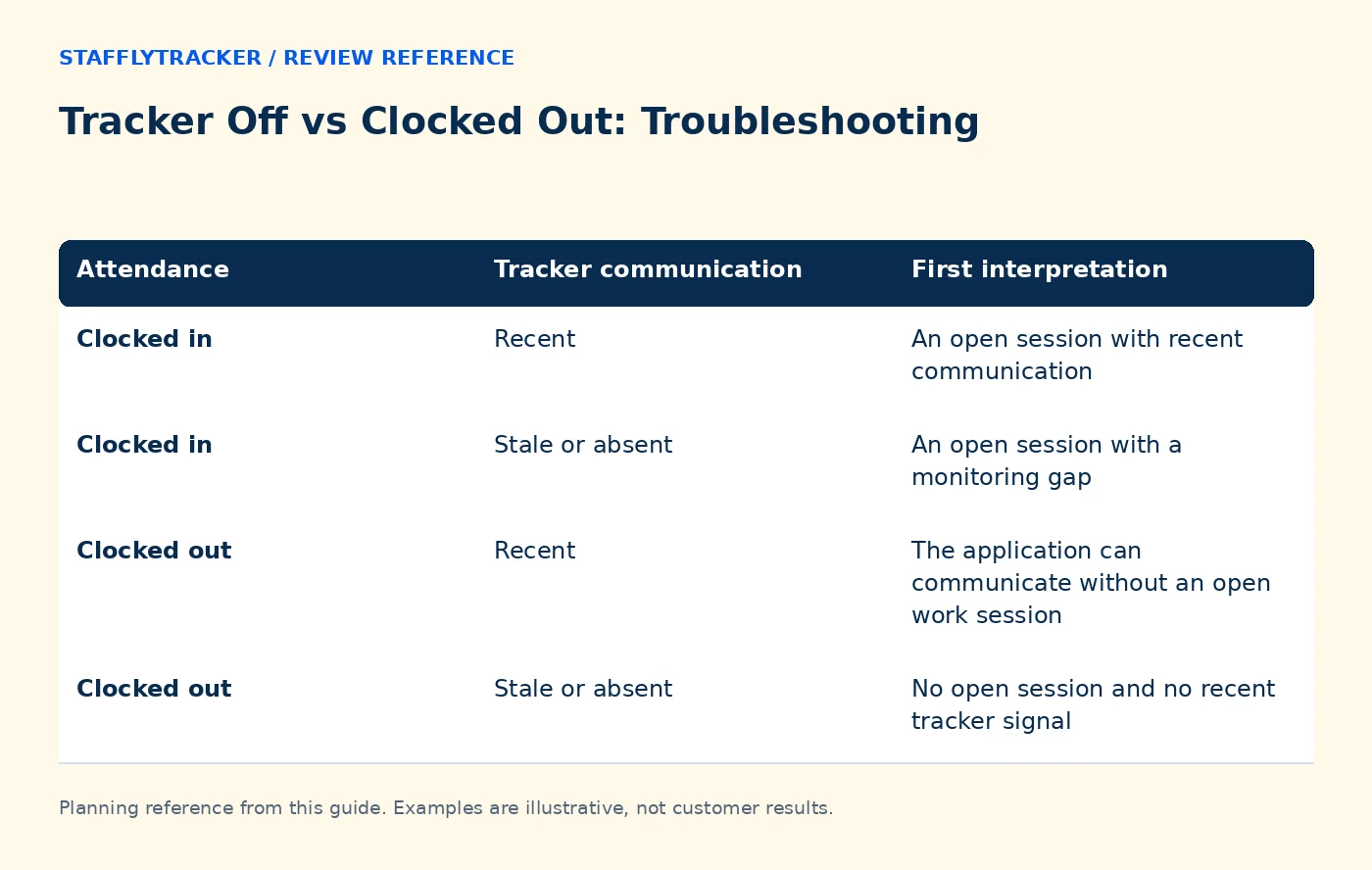
“Tracker off” and “clocked out” describe different things. Tracker status concerns whether the application is communicating. Attendance status concerns the recorded work session. A person can have an open attendance session while the tracker has stopped sending data.
Treat a mismatch as a troubleshooting question before treating it as employee conduct. A sleeping laptop, network outage, expired sign-in or application failure can produce similar symptoms. The useful evidence is the last successful communication, the session record and the device involved.
Read the four common combinations
| Attendance | Tracker communication | First interpretation |
|---|---|---|
| Clocked in | Recent | An open session with recent communication |
| Clocked in | Stale or absent | An open session with a monitoring gap |
| Clocked out | Recent | The application can communicate without an open work session |
| Clocked out | Stale or absent | No open session and no recent tracker signal |
None of these combinations alone tells you the person's intent. “Recent” also depends on the product's freshness threshold. A green indicator is a point-in-time status, not proof of uninterrupted coverage throughout the shift.
Check loading before checking the laptop
When a page first opens, employee names and tracker details may arrive through different requests. An interface should distinguish loading or unavailable information from a confirmed “never installed” state. Wait for the page to finish loading and check whether it reports an error.
If many employees suddenly appear without tracker history, start with the dashboard or service connection. It is less useful to ask every employee to reinstall before checking whether the status request failed. Record the time and whether a refresh changes the result.
This is a general diagnostic sequence, not a claim that every possible loading-state bug is already fixed in every release. The changelog and installed version are the references for shipped behavior.
Establish the last known good point
Identify the employee account, computer name if available, tracker version and last successful signal. Then compare the relevant attendance session and screenshot or activity timestamps. Keep the display timezone consistent so a five-hour offset does not look like a missing shift.
If the account has been used on more than one computer, distinguish their evidence. A live signal from one machine does not prove another machine is recording. Avoid combining different devices into a confident story about a single workstation.
Ask the employee whether the laptop slept, restarted, changed network or displayed an error around the gap. This is often more informative than restarting everything and losing the original symptom.
Resolve the application state carefully
Check that the approved tracker is installed, signed in to the correct workspace and allowed to start as configured. Confirm that the operating system can reach the service and that the application version is supported. Use the documented support workflow rather than downloading an unverified copy.
A force clock-in action cannot magically power on an offline laptop or make a completely absent program communicate. Remote attendance actions depend on the supported application and connection state. Ask to see this dependency demonstrated in the product demo if it matters to your rollout.
Do not disable security software broadly to make a test pass. Capture the actual error and ask the administrator to investigate the specific connection or execution issue.
Interpret automatic clock-out as a separate rule
A stale-tracker threshold and a cleanup schedule are not necessarily the same interval. If a company sets a threshold, the actual state transition can also depend on when the server evaluates it and whether a break or another documented exception applies.
Check the current configuration and supported behavior before promising an exact second of clock-out. If attendance remained open through a confirmed outage, preserve the original record and use the approved time correction workflow when appropriate.
Do not turn every unmonitored minute into idle time. “No data” is a different evidence state from a measured lack of input.
Close the incident with a useful record
Record the affected time range, device, version, error, action taken and whether communication resumed. If a pay-related correction was needed, link its reason to the incident. The employee should have a way to challenge an inaccurate interpretation.
Does an active attendance session guarantee screenshots?
No. Captures also depend on the running tracker, connection, configuration and storage availability. Check each separately.
Should everyone reinstall when status looks wrong?
First establish whether the issue is one device or a shared service/display problem. Reinstallation is not a substitute for diagnosis.
What should a manager do with the gap?
Label it as missing evidence, seek context and review attendance under company policy. See the data quality checklist before making a performance conclusion.
KEEP EXPLORING
Make the next decision clearer.
Run a Useful Weekly Workforce Review Roll Out a Windows Tracker Across an Office Employee Time Tracking Buyer’s ChecklistSEE THE WORKFLOW
Bring your questions.
Try the actual interface.
Explore fictional records, then discuss the requirements that matter to your team. Email required; phone optional.
AI-assisted editorial content and original illustrations. Examples are illustrative, not customer results. Editorial policy · Current product availability · Read as Markdown