
INDUSTRY GUIDE · FIELD NOTES
Time Tracking for Legal Operations
Evaluate time tracking for legal operations with confidentiality checks, attendance examples and clear limits on matter billing and activity scores.
StafflyTracker editorial · Product by Syed Toheed Shah

Time tracking for legal operations should separate attendance, application context and client billing. StafflyTracker can help a Windows-based administrative team review recorded workdays, breaks and connection gaps. It is not a legal practice-management platform, a matter billing ledger or evidence that a legal task was performed correctly.
Define the administrative use case
A legal operations team may coordinate appointments, organize document queues, chase signatures and prepare matter files. Some tasks generate frequent input; others involve reading a document or a long telephone call. A fair review starts with the expected task, not a universal activity threshold.
Choose one initial objective: reliable attendance for a distributed administration team, clearer handoffs between shifts, or fewer unexplained time corrections. Keep matter deadlines and client approvals in the systems already responsible for them. Adding another tool should not create a second contradictory deadline register.
List the systems the team actually uses. An approved document platform, a calendar and a client portal may all run in the same browser. Rules should match meaningful application or title patterns where available, not assume that every Chrome window has the same purpose.
Screenshots require a deliberate decision
A screen can display confidential material even when a user is doing an ordinary administrative task. Before enabling screenshot collection, decide whether that collection is appropriate for the work, how staff will be informed and who can review the records. Use fictional documents during evaluation.
StafflyTracker's data collection documentation describes the records and limits. Do not interpret the presence of a trust page as a claim of legal-industry certification or automatic compliance. Review your own obligations and client terms with the people responsible for them.
Managers currently have company-wide review access. Department assignment changes classification rules; it does not restrict a manager to one matter group. If matter-level separation is essential, treat it as a product-fit requirement rather than assuming it exists.
Review a workday in three passes
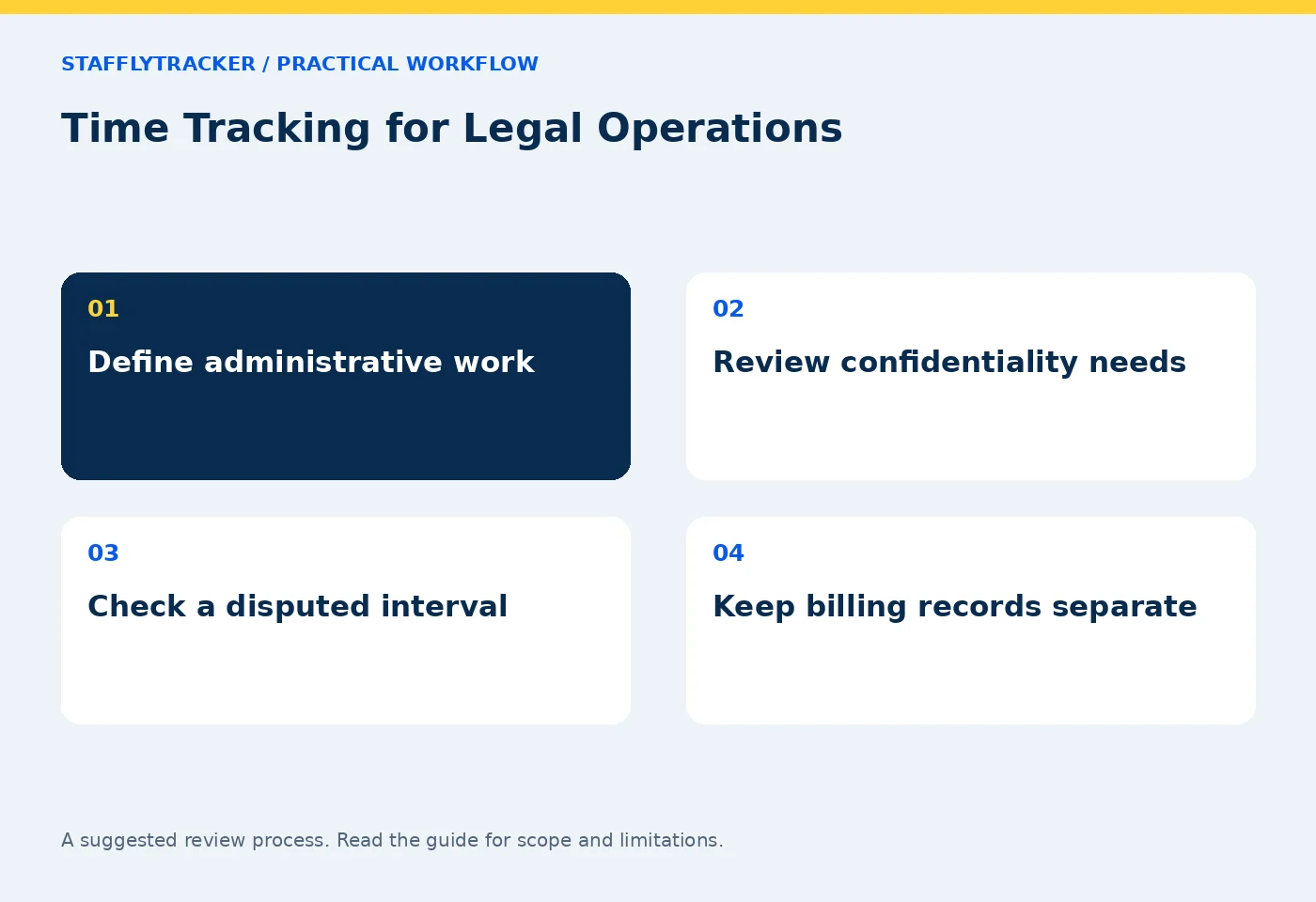
First review attendance: expected workday, recorded sessions, breaks, leave and holidays. Identify anything missing before opening an activity timeline. A person with approved leave should not be discussed as an unexplained absence.
Second review coverage. An active attendance session can remain open when the desktop tracker stops communicating. Mark a missing interval as a connection or recording issue until there is evidence for another explanation. A blank interval is not a reliable measure of inactivity.
Third review the operational outcome. Was the scheduling queue cleared? Were documents routed to the correct reviewer? Was the next shift given the information it needed? These are examples of questions for your case or task system, not claims that StafflyTracker automatically measures them.
Example: a long document-review interval
In this fictional scenario, an operations assistant has one browser document open from 2:00 to 2:45. Several screenshots look alike. The assistant says they were checking names against a separate paper checklist and discussing corrections on a call.
The evidence supports a narrow description: the captured screen changed little. It does not establish whether the paper check or call occurred. Ask for the relevant completion record or supervisor context, without expanding the review into unrelated private information. If the work was legitimate but the activity percentage is low, preserve that distinction in the review.
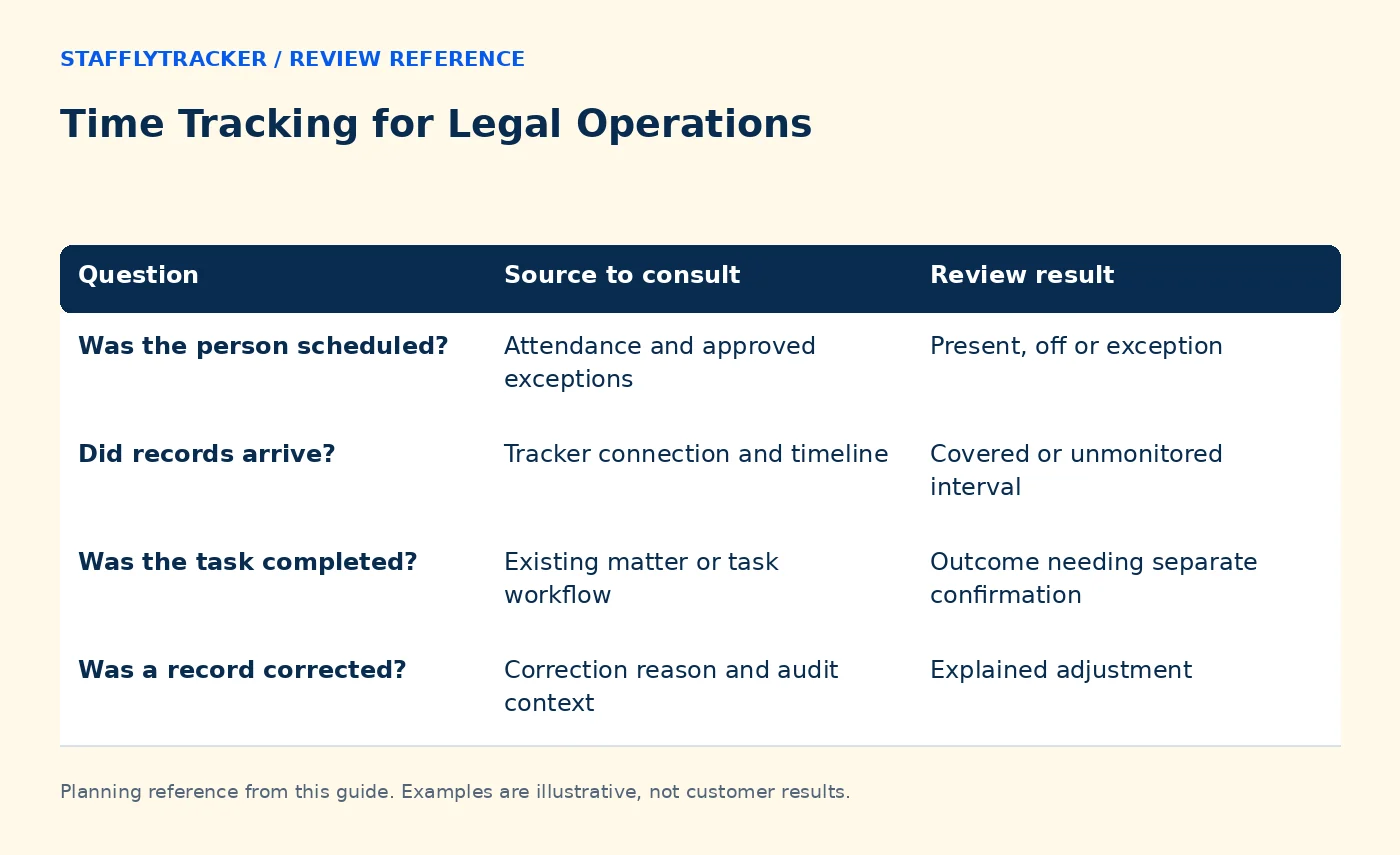
| Question | Source to consult | Review result |
|---|---|---|
| Was the person scheduled? | Attendance and approved exceptions | Present, off or exception |
| Did records arrive? | Tracker connection and timeline | Covered or unmonitored interval |
| Was the task completed? | Existing matter or task workflow | Outcome needing separate confirmation |
| Was a record corrected? | Correction reason and audit context | Explained adjustment |
Agree a correction and export process
Give staff a clear way to report a forgotten clock-in or interrupted session. Capture the date, interval, explanation and reviewer decision. A correction should explain the difference between the recorded day and the approved day; it should not be presented as newly recovered telemetry.
Before exporting a period, confirm the timezone and workday convention. An evening administrative shift can finish after local midnight. Check that its attendance date and displayed clock-out make sense together. Keep the approved export with its review date to avoid two competing versions circulating later.
Pilot without exposing real client material
Start with a small Windows group using sample documents. Test installation, the selected company workspace, clock-in, break, clock-out and reconnection. Let the supervisor practice finding an employee and an exact interval instead of scrolling through the entire day.
Have a second person review the exported sample and explain its columns without help. If they cannot distinguish working time from clock span or idle from a break, resolve the definitions before using the file operationally. The attendance review guide provides a starting point.
Compare tools on requirements, not presentation
Time Doctor and other established products may offer integrations or controls your practice depends on. Check their current official documentation and test the exact workflow. StafflyTracker's current scope and omissions are listed in product availability.
For StafflyTracker, confirm Windows support, company-wide manager visibility, storage limits and the correction process. Published pricing starts at $4 monthly per tracked employee, with a ten-seat minimum; the annual equivalent requires annual billing. Use pricing and the demo together before committing.
Common questions
Is this a replacement for matter time billing?
No. Keep matter allocation, chargeable time and client invoices in the appropriate practice-management or billing system.
Can screenshots prove a person was not working?
Not by themselves. They show sampled screen content, while legitimate work may involve reading, calls or work outside the captured display.
Can departments isolate confidential teams?
Not as an access boundary in the current product. Read roles and access before deciding whether the permission model fits your organization.
KEEP EXPLORING
Make the next decision clearer.
Time Tracking for Engineering Teams Idle Time vs Break Time: What to Count Employee Time Tracking Buyer’s ChecklistSEE THE WORKFLOW
Bring your questions.
Try the actual interface.
Explore fictional records, then discuss the requirements that matter to your team. Email required; phone optional.
AI-assisted editorial content and original illustrations. Examples are illustrative, not customer results. Editorial policy · Current product availability · Read as Markdown